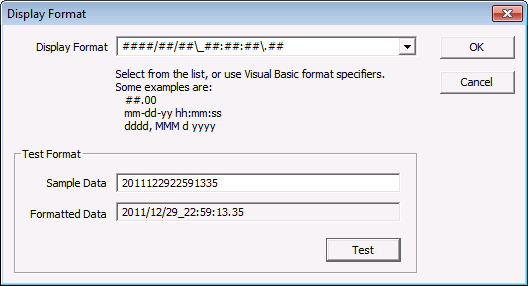
Certain Service Monitor (SVCMON) points report date/time information in a string format. This information can be displayed on a CygNet Studio tool with the [DisplayFormat] property, but it is difficult to read in string format. An example of a string-format date/time is 2010032922591335. If you use the following instructions to change the display format, a string date/time 2010032922591335 displays as 2010/03/29_22:59:13.35.
Common tools with the [DisplayFormat] property include the Text Tool, Button Tool, DDS Editor Button, LED Switch Tool, Ribbon Tool, Sliding Scale Tool, and the UIS Command Button Tool.
To Clearly Display Service Monitor Point Date/Time
####/##/##\_##:##:##\.## |
|
|
|

